 +86 136 0249 1788

Overlay
1. Page Preview

2. Function Introduction
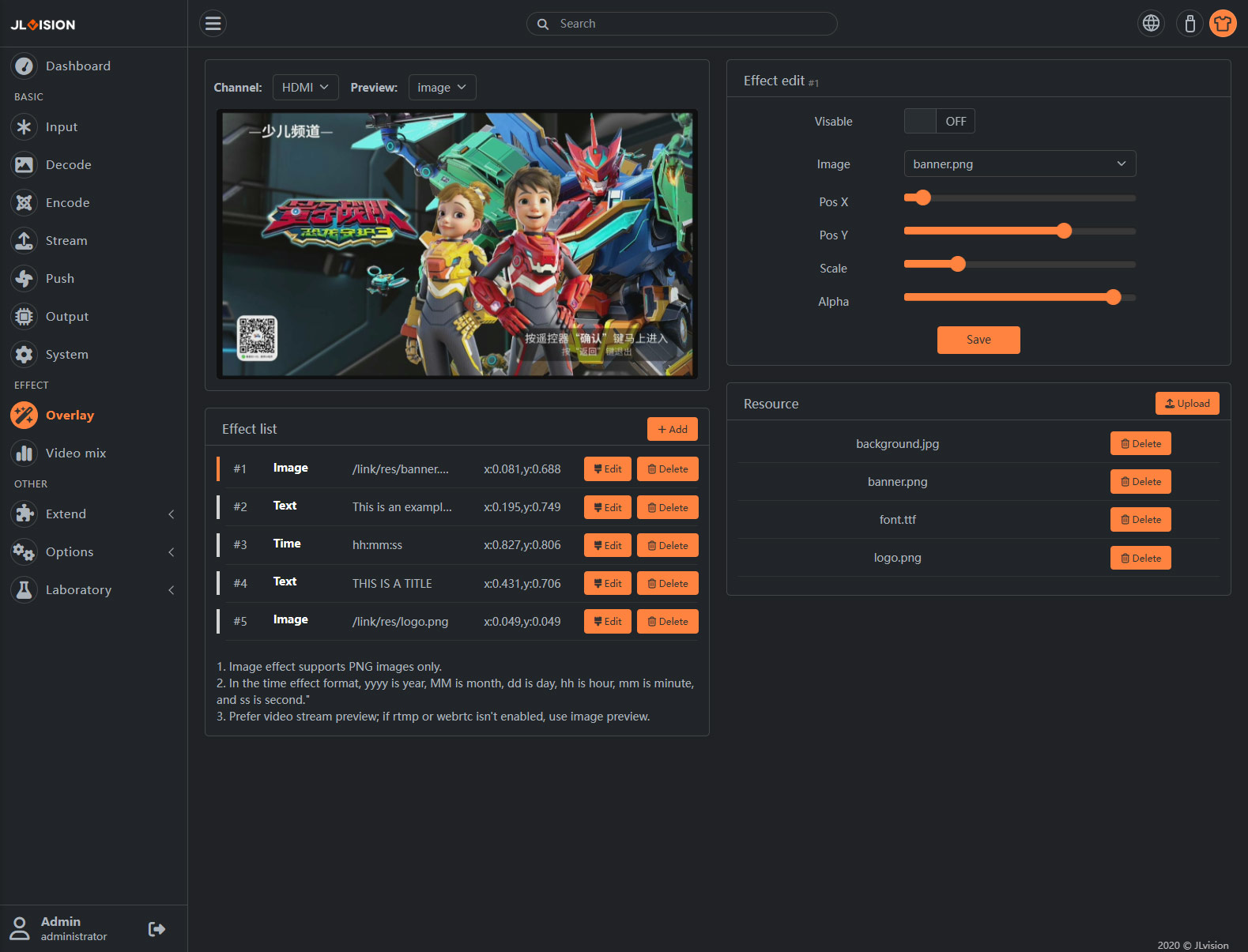
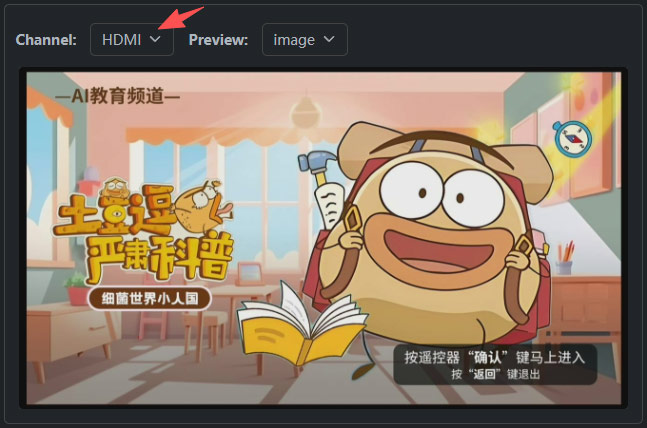
A.Preview window (for previewing in image form)
Different effects types display different effects properties, most parameters are obvious, you can set and save to preview the effect in the “effects Preview” area.
B.Effects list
Here is a list of all the special effects for the corresponding channel, showing the special effect types and the superimposed position coordinates.
Click the “+Add” button to create a new effect, as shown below:
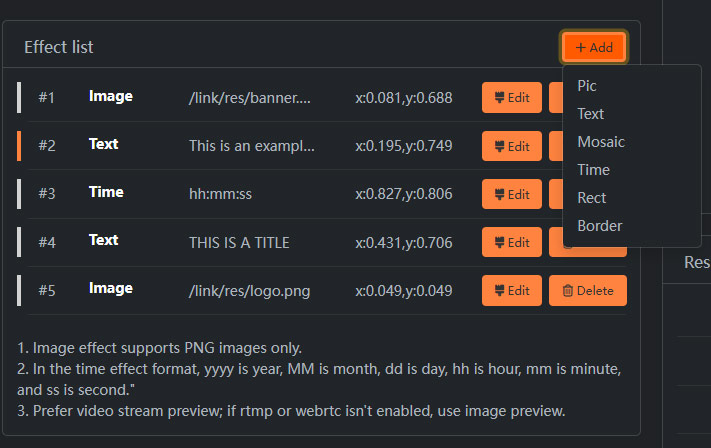
Click the Delete button to delete the layer effect.
Click the Edit button and the edit properties of the corresponding overlay will be displayed in the “Special Effects Edit” area.
C. Overlay config:Superimposed effects support subtitles (scrollable), watermarks (pictures/ICONS, etc.), time codes, mosaics and other effects. The page is divided into four sections, top left, top right, bottom left and bottom right, which are “Effects Preview”, “Effects Edit”, “Effects List” and “Resource”.
2.1. Overlay Logo
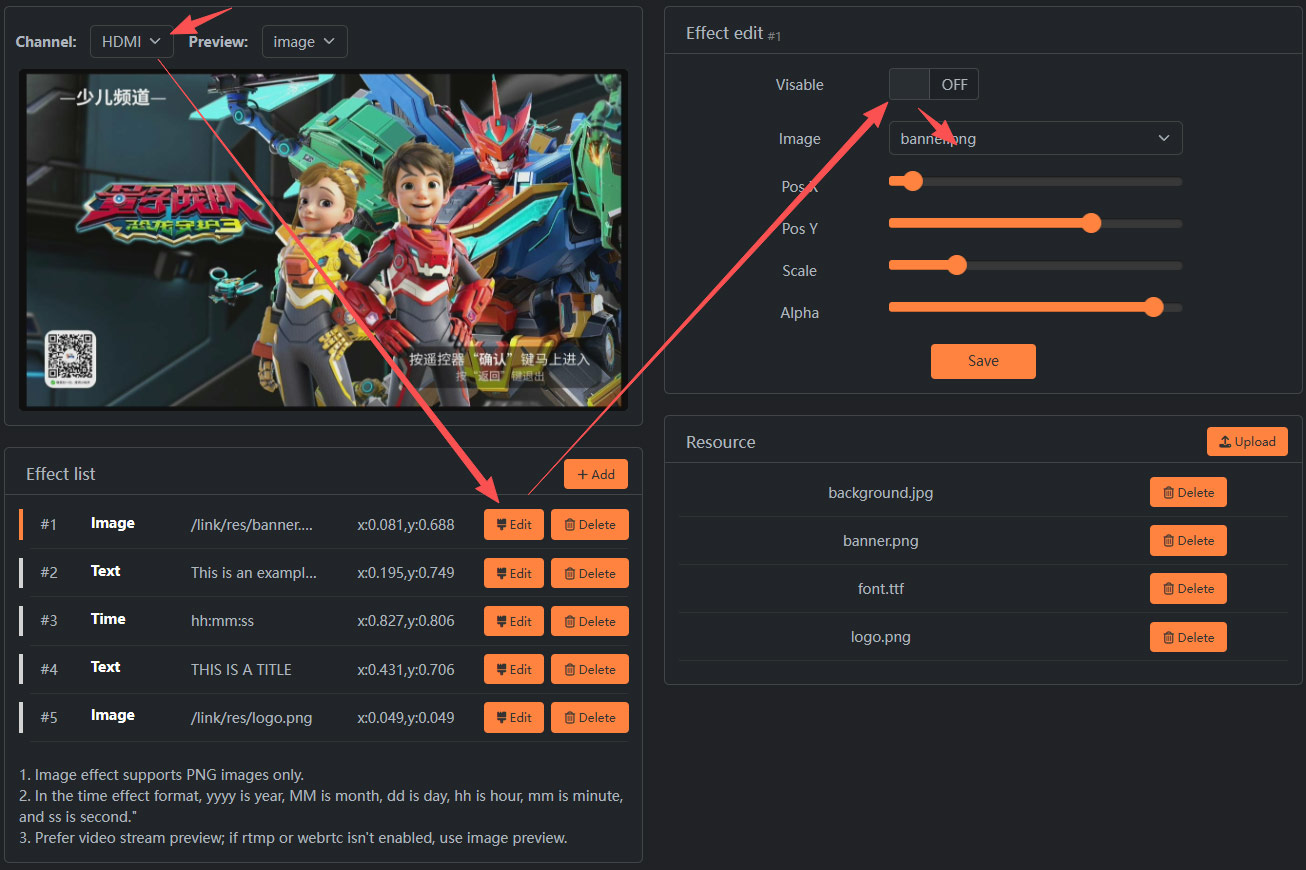
First, you need to select the channel where you want to apply the editing effects. Only when the corresponding channel is enabled (both the network stream and the video file need to have video decoding enabled), can you choose the corresponding channel here. There are various special effects for overlaying. Here is the method for overlaying the logo.
A.The image and font files used by special effects can be uploaded through the upload button in this area.
Note: Do not delete fonts or image files that are in use.
2.2. Overlay scrolling subtitles
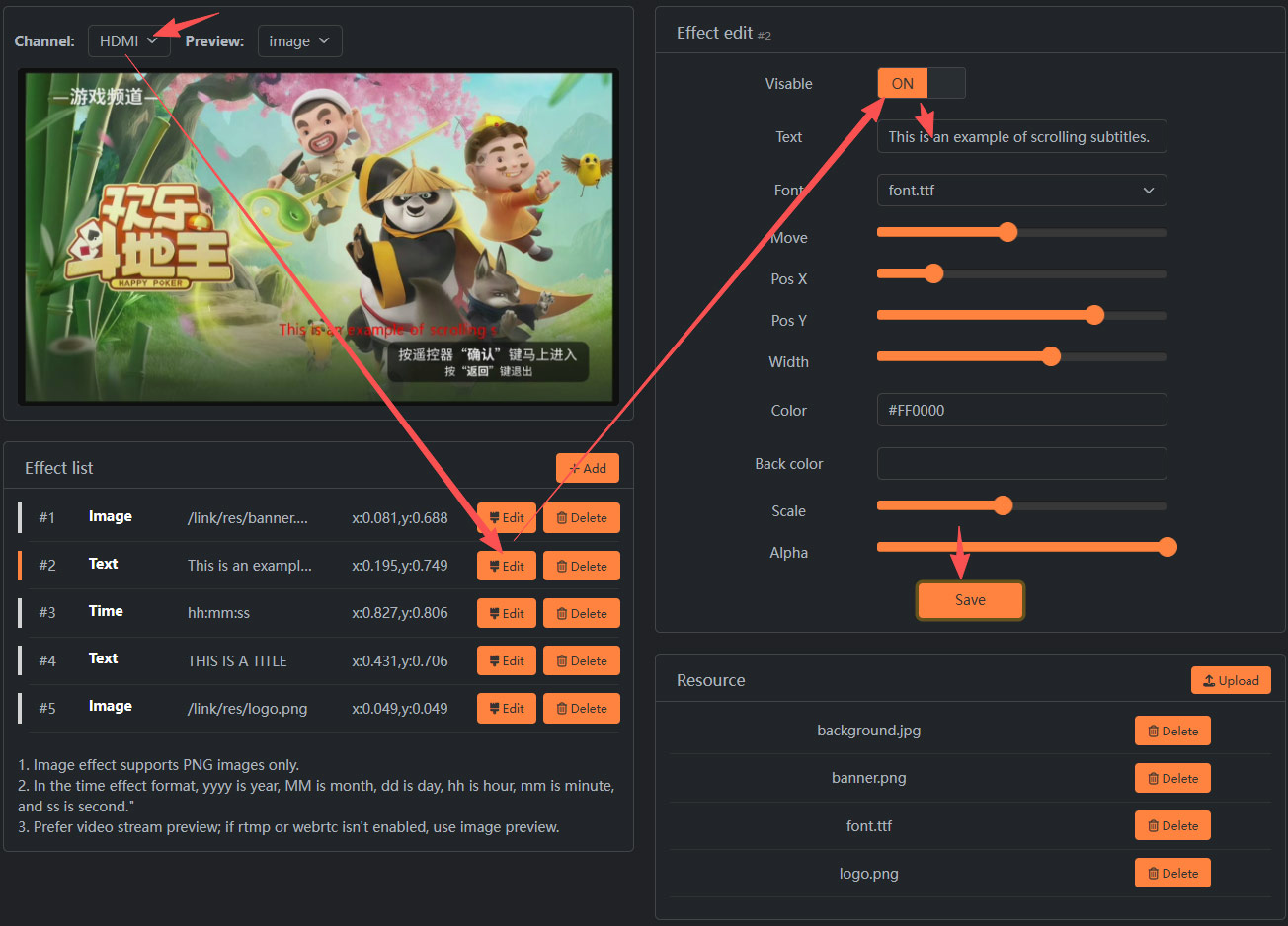
Subtitle effect: The “Move” attribute of the subtitle layer indicates the direction of scrolling subtitle. When it is set to 0, it is static subtitle superposition. When less than 0, it is the scrolling caption moving to the left; When the value is greater than 0, it is the scroll caption moving to the right.
The “width” of the marquee layer indicates how far the scrolling marquee moves, not the font size. The font size is determined by the “Scale” property.
The “Image” layer currently only supports PNG32 bit images with a resolution not greater than 1920×1080.
2.3. Resource
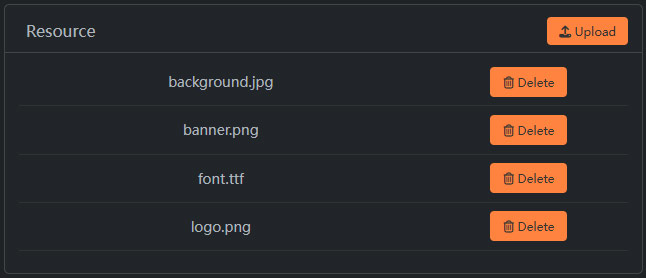
The image and font files used for the special effects can be uploaded through the upload button in this area.
Please note that do not delete the font and image files that are currently in use.