 +86 136 0249 1788

Decode
1.Preview Page
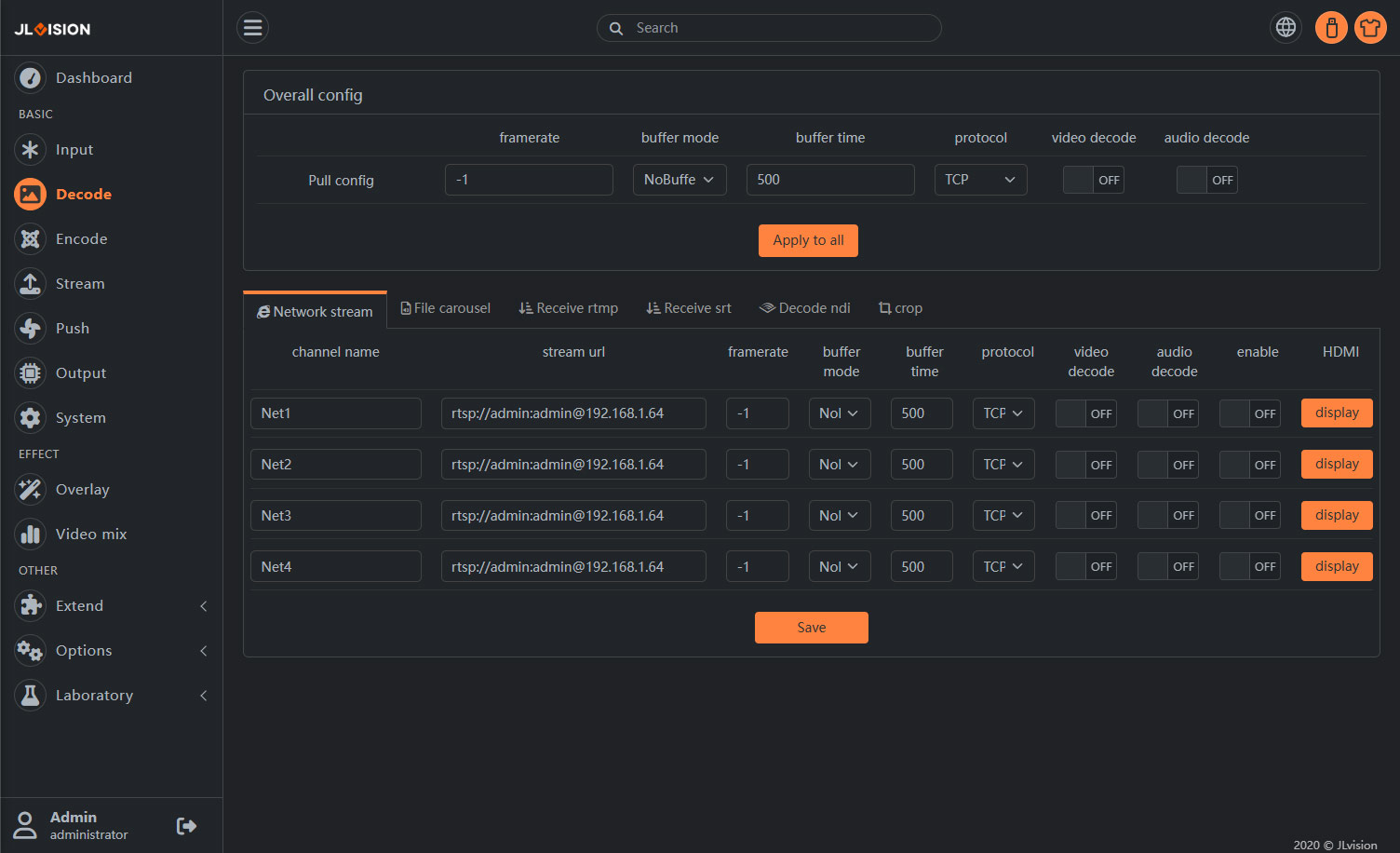
2. Function Introduction
2.1 Global Configuration

A. This section presents the basic parameters for network stream decoding settings, which are used for quickly and uniformly modifying the decoding settings for all channels. After configuring the global parameters, simply click the “Apply to All” button and all channel parameters will be automatically set to the same global parameters.
2.2 Network stream
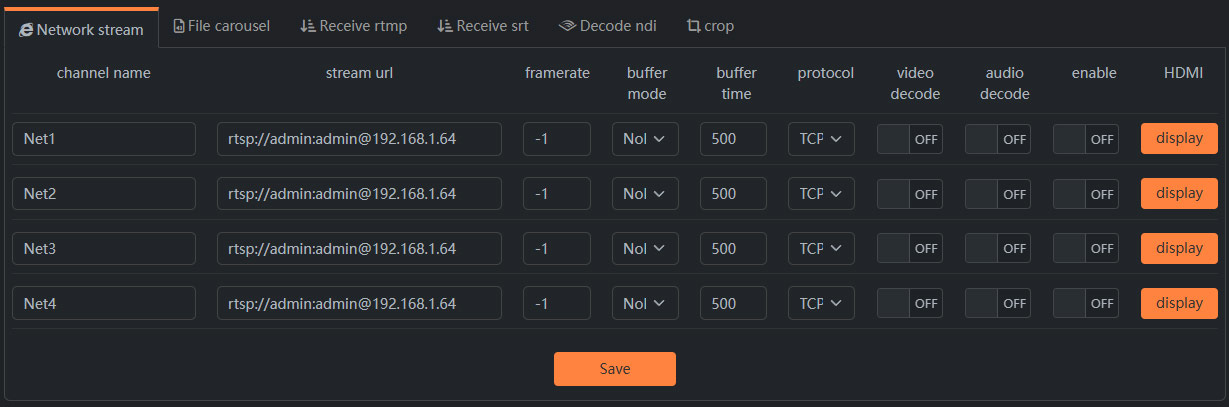
B.It supports inputting live network streams, and then converting or transcoding the network streams for output. For example: Most of the network cameras used for surveillance in the market only support RTSP streams. To push the stream from the surveillance camera to the RTMP-SERVER, it is necessary to convert the RTSP stream into an RTMP stream address.
The video encoding standard of the input network live stream must be H264 or H265, and the audio format must be AAC, PCMA, MP2, or MP3. If only converting the stream, since no re-encoding is performed, the video quality and audio quality of the network stream will not be changed, nor will the bitrate of the converted output.
When set to transcoding output, then the “video decoding” switch needs to be turned on, and subsequently in the “encoding parameters” column, parameters such as the resolution of the encoded output, encoding method, rate control method, rate, frame rate, GOP interval, etc. need to be set.
stream url: For IPcam, it is usually the RTSP address. In fact, here any protocol (RTMP/HTTP/SRT/UDP, etc.) of the stream address can be filled in, as long as it is supported by LinkSDK.
The reference format of the SRT protocol is srt://ip:port? mode=caller&latency=50.
Framerate: Since some cameras do not specify the video frame rate in the protocol, the encoder cannot calculate the frame rate properly during transcoding. Users need to manually fill in the frame rate. In most cases, leaving it as -1 is fine. The encoder will automatically determine and, when unable to make a decision, will abandon the frame rate control and perform transcoding based on the input frame rate.
Buffer mode: “Normal”: with a small buffer and receiving data for decoding; “Nobuffer”: without buffer, receiving data and decoding immediately; “Buffer”: with a large buffer, decoding synchronously according to timestamps; “Sync”: only for original network streams with frame synchronization, achieving the effect of device decoding and synchronization at other decoding ends. If combined with the frame synchronization function on the encoding settings page, it can achieve the synchronization effect between the encoded network stream and the original network stream.
Buffer time: in milliseconds. It is effective only when the buffer mode is “Buffered” and “Frame synchronization”. The larger the value, the greater the delay.
Protocol: Only for RTSP settings, selectable “UDP, TCP”, it is recommended to choose “TCP” (rtp over rtsp mode), which can ensure data integrity and prevent packet loss.
Video decode: Video decoding switch. If no transcoding is required, only for protocol conversion (such as rtsp to rtmp), this switch does not need to be enabled.
Audio decode: Audio decoding switch. If no transcoding is required, only for protocol conversion (such as rtsp to rtmp), this switch does not need to be enabled.
Enable: The total switch for this network input channel.
HDMI: Click the “Output” button to output the decoded data of this network input channel to the HDMI output port.
Since the audio codec of the main chip will occupy a lot of CPU resources, it is recommended to only enable the audio decoding switch when audio needs to be transcoded or mixed into the Mix channel.
2.3 File Carousel
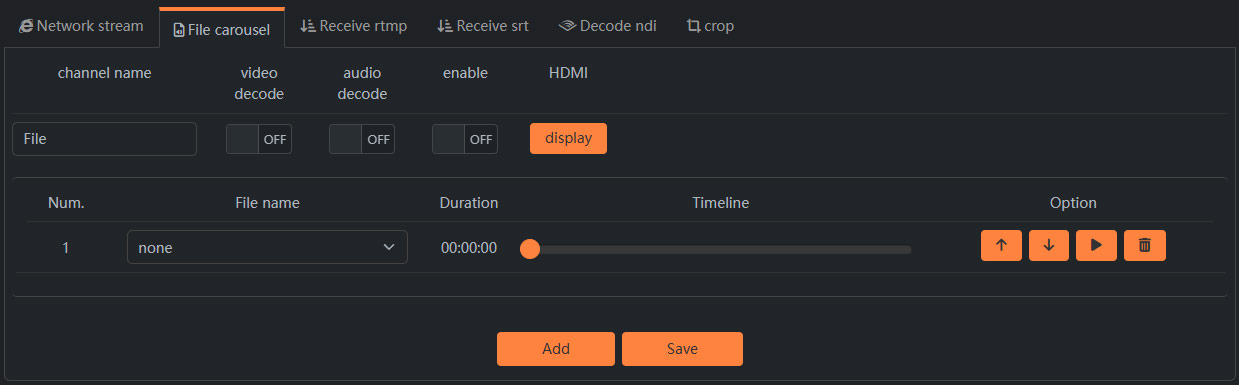
2.3.1 The encoder can convert the streaming media files on an external USB drive into live streaming streams. The selected files will be output in sequence as live streaming streams, and the process will restart after all the files have been played (i.e., in a loop). This function merely reads the media files on the USB drive, and then the selected files are output as live streaming streams; the video encoding format of the media files must be H264/H265, and the audio encoding format must be AAC, MP3, MP2, or PCMA.
2.3.2 Receive RTMP push stream
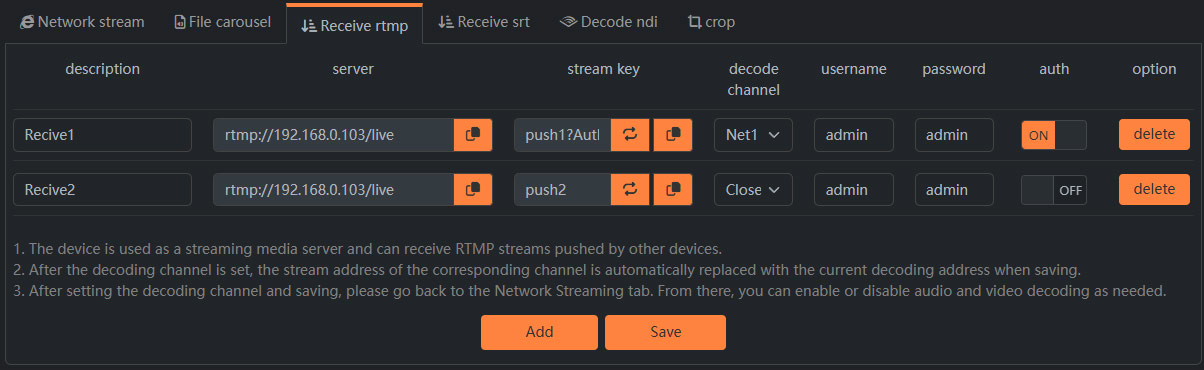
At this point, once the authentication is enabled, the encoder will be used as a streaming server. Other devices (such as Go Pro or DJ action cameras) can stream to the current device using the server and streaming address. After selecting the decoding channel, when saving, the pull-down address of that channel will be automatically replaced with the corresponding decoding address.
After setting the decoding channel and saving it, please return to the “Network stream” tab page. Based on the usage scenario, turn on/off audio and video decoding.
2.3.3 Receive srt
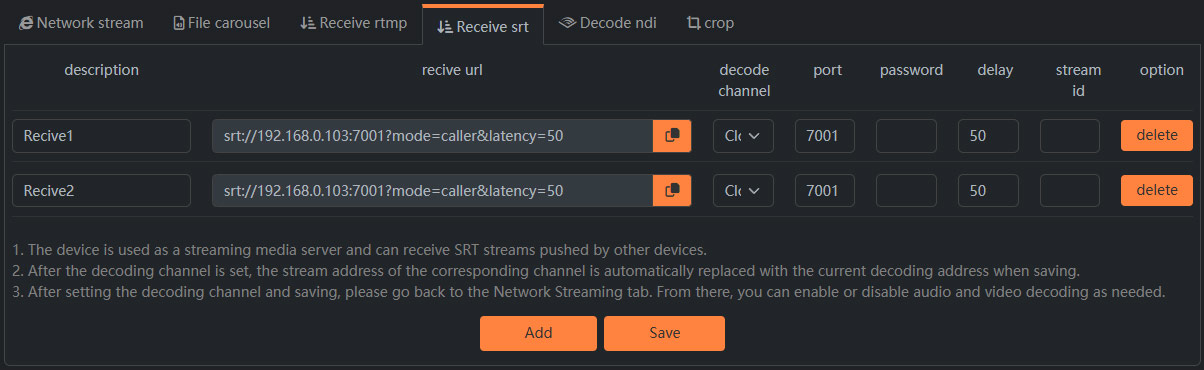
a. The device is used as a streaming media server and can receive SRT streams pushed by other devices.
b. After setting the decoding channel, when saving, the pull streaming address of that channel will be automatically replaced with the corresponding decoding address.
c. After setting the decoding channel and saving it, please return to the “Network Streaming” tab page and turn on/off audio and video decoding according to the usage scenario.
2.3.4 Decode NDI HX
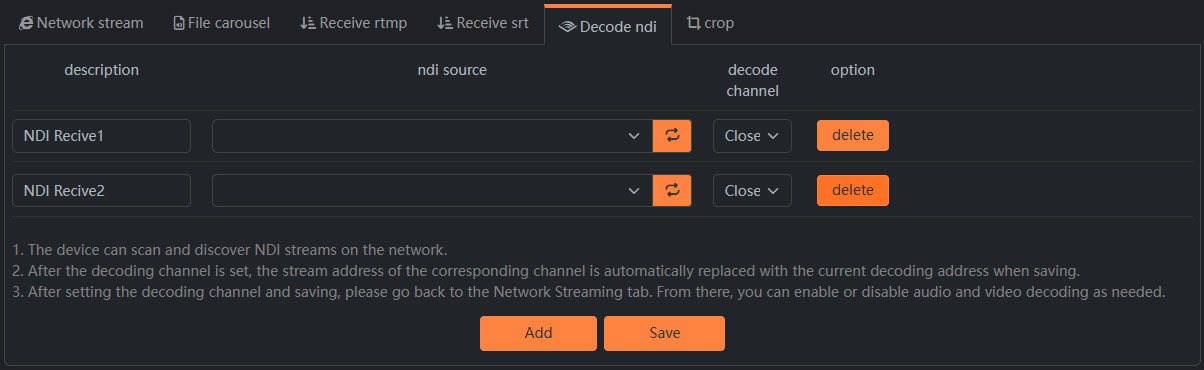
The device can automatically scan the NDI streams within the network, select the NDI source and set the decoding channel, then save the settings. Switch to the network streaming page to set the decoding for this NDI stream (it only supports decoding NDI-HX live streams). Additionally, to use the NDI function, an authorization code needs to be purchased. If you need to do this, please contact the customer service. Without authorization for the device, you can experience using the 30-minute test version.